Creating notion docs with AI
What was the aim?
We had several team members leaving, we hadn’t updated our documentation recently and we didn’t want to lose all of that accumulated knowledge. There were some existing pages, diagrams and notes on the system but having gone through team merges and other factors, nothing was up to date.
How to solve the issue?
Like so many things nowadays I decided to try to solve the problem using AI. As a team we had just finished up a knowledge share on how one of the services worked, while going through it I had taken notes in my personal Notion. When I went to review them the content was there, but it wasn’t well structured. I had enough knowledge fresh in my mind to link the sentences together but give it a week or two and these notes were going to be useless.
So I booted up opencode, in a folder containing all of the team’s repos, and got to work.
The first challenge was connecting opencode to Notion. After some checks it just took a bearer token from my Notion account and a link to the page(s) I wanted to give opencode access to. I gave it my recently created notes and the repo it was on and let it refine the page. The outcome was well structured and kept all of my knowledge and added to it with the context of the repo.
Then it was a case of prompting it with my knowledge of the other repos and how they related at a high level, instructing it to go through all the repos in the folder and gather context on individual repos and how they connected, noting any architecture files and instructions, and finally feeding in my previously mentioned notes on one of the services to add into the pages.
The outcome was one very long page, with decent structure. Time to refine. Another prompt or three on Notion layout and we had an intro page for new starters, and sub pages for each of the grouped repos. At this point I decided to share the progress with some of my colleagues for feedback. The main feedback was to add information architecture and take diagrams from previous Notion pages.
For this I could have just copied and pasted, but I wanted to push the AI experience further. Onto the world of diagrams, MCPs, and time sinks…
Diagrams
Mermaid
This was a step that I thought would be easy. I searched for MCPs that I could integrate into opencode, create a diagram and then update the Notion page with. The front runner, on the face of it, was Mermaid. Connecting the MCP up was simple enough, adding:
"mermaid-mcp": {
  "url": "https://mcp.mermaid.ai/mcp",
  "type": "remote",
  "headers": {
    "Authorization": "Bearer XXX"
   }
 }
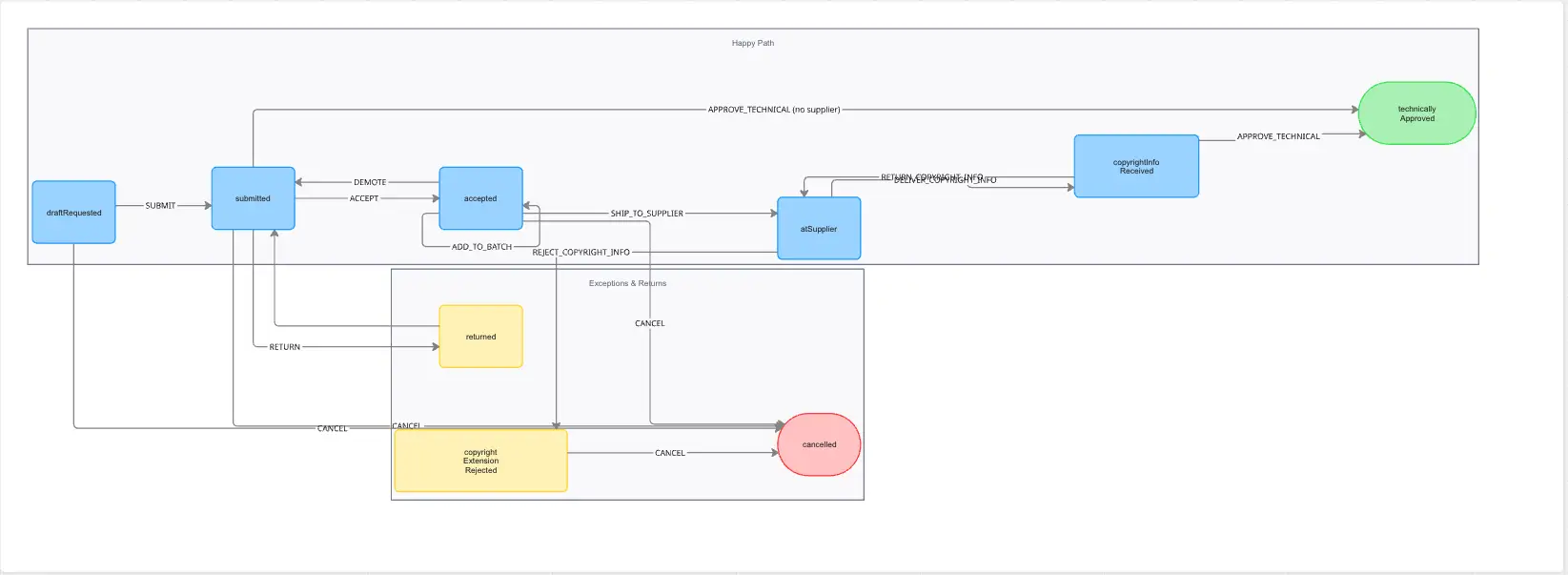
I decided to start with a state flow diagram we use within the request app. The current version was created on stately.ai and with the free licence it is owned by one person, with others only able to view it. A good candidate for creating anew and updating.
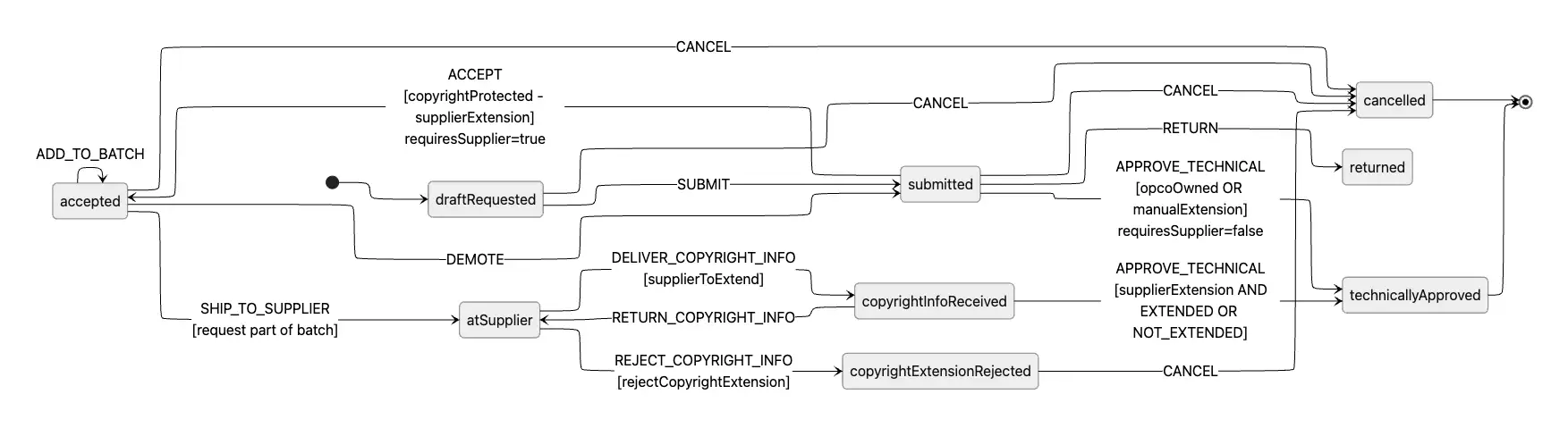
Providing opencode with the URL for the diagram allowed it to open, view and screenshot within its own browser. This combined with the access to the repo gave it an up-to-date view of the flow. The issue was the outputted diagram. All the information is there, and conveniently you can edit it directly in Notion, but the layout is cluttered and densely packed. Mermaid does not allow for individual node control so this was as good as opencode could provide.
Excalidraw
Next up for trial was Excalidraw. This was again a simple addition to the opencode.json, this time with no auth needed as it has free use (don’t quote me on that).
"excalidraw": {
  "type": "remote",
  "url": "https://mcp.excalidraw.com/mcp"
},
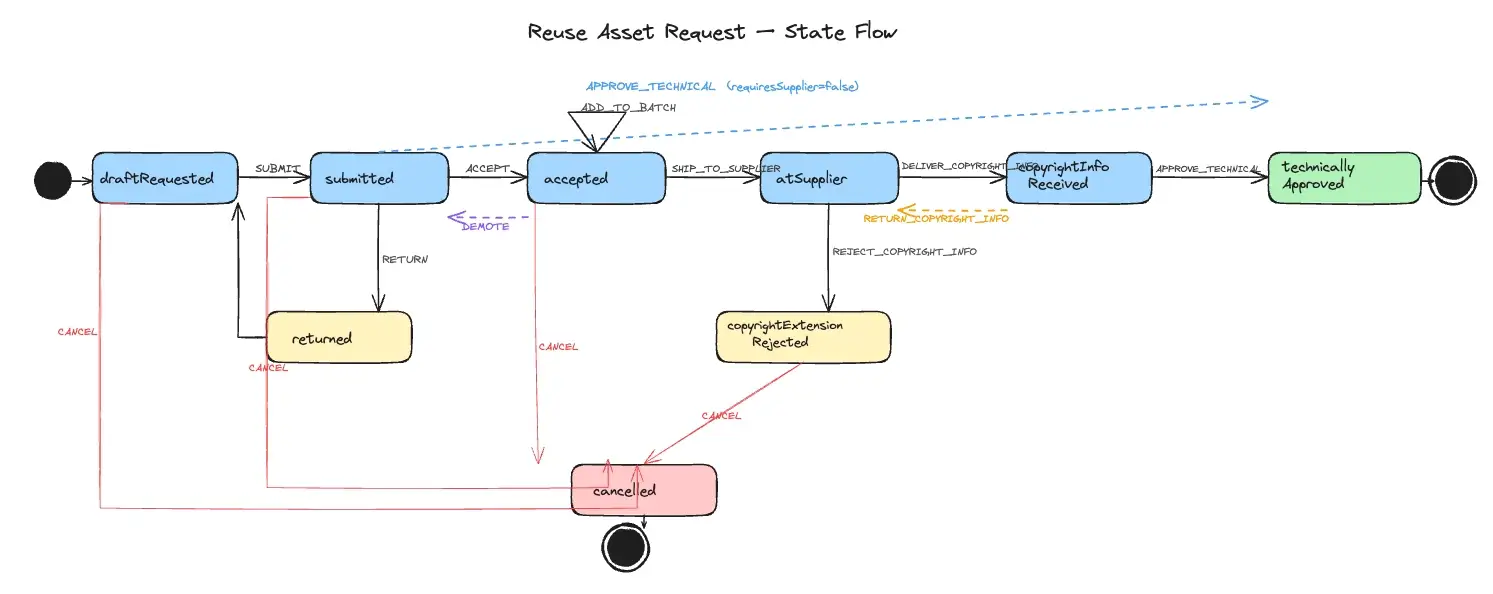
With the MCP connected I gave the same prompt and link to opencode and let it work. This time the result was much more readable, and it could follow my instruction to have the ‘happy flow’ all in a straight line with returns and other routes coming off of it. A good effort, however the precision wasn’t quite there, lines wouldn’t always connect where you’d expect.
Miro
The company policy is to use Mermaid or Miro for diagrams so I thought this would be a good next step. Connecting Miro to a free personal account was no problem, but connecting to the company (enterprise) account required options to be turned on, so I decided to experiment with just my private account for this diagram. Again, a small addition to opencode:
"miro": {
  "type": "remote",
  "url": "https://mcp.miro.com/"
},
This time it required a command to trigger a popup to sign in with credentials. With that done, I gave it a URL for the board to create the diagram in and the same prompts as the previous MCPs and waited. The result was three different iterations of the flow stacked on top of each other in the Miro board. After some attempts to delete them, the human had to step in, move things around, and delete the versions that were not needed.
The first attempt had a clear layout, but with a rising shape that didn’t reflect the desired result.
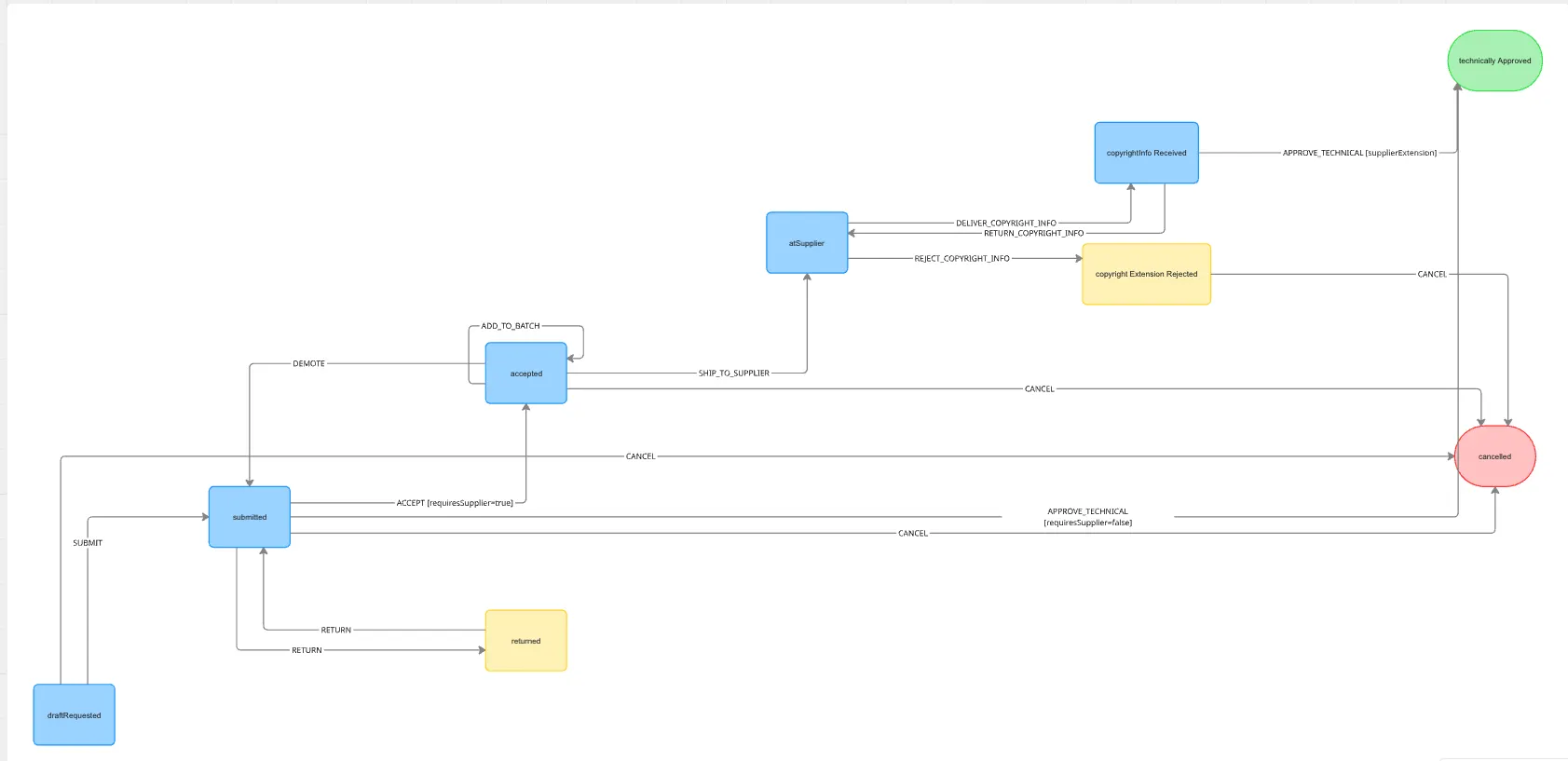
The second and third attempts enforced the happy path layout better, but in doing so created a more cluttered diagram. Again, node manipulation is limited within Miro so a compromised layout was the result.
draw.io
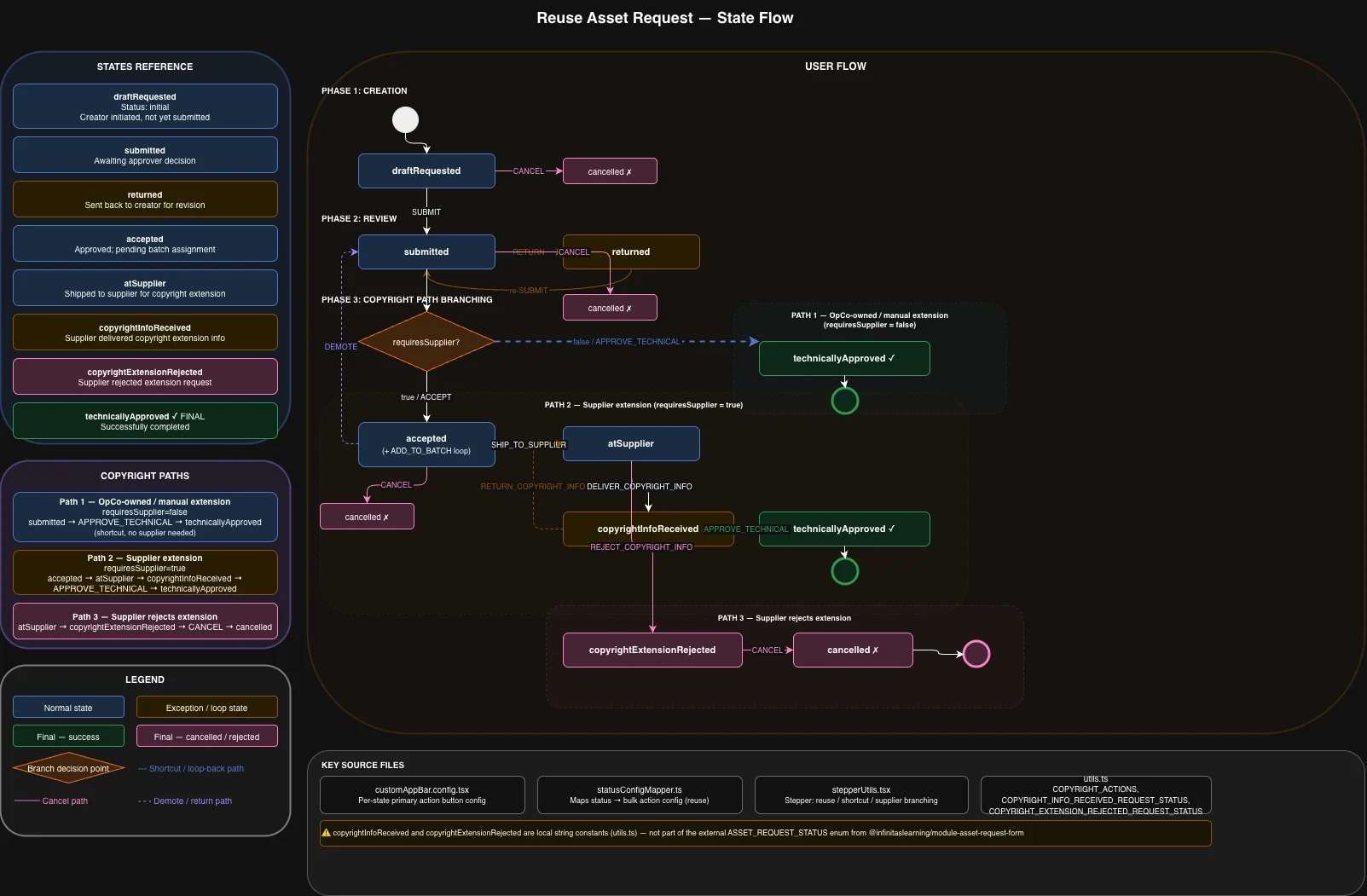
Where did that leave me? Stumped and frustrated. I reached out to colleagues to hear about their experiences. No one was trialling with MCPs but others had similar experiences with Mermaid. A colleague mentioned good results with draw.io and XML so I began experimenting. The experience required quite a few iterations but even from the first created diagram there was promise. The first challenge was getting opencode to review and iterate on the versions it was creating. It could open the URL in a browser but replacing the XML proved too difficult — it could get through four or five of the steps but would get stuck. My compromise to not waste too much time was to add an instruction to prompt the user to replace the XML when opencode was ready. This sped things up dramatically and allowed us to iterate through several versions. I am colour deficient, and the base colours being used were difficult for me to read, so with a prompt I swapped to the IBM Carbon palette and it improved. The final result I settled on is below.
Lessons learned?
What to do now that I had a successful output? Get opencode to compile the session and put its learnings into a new agent skill, named notion.md. This file keeps the improvements on how to view and review its iterations, colour preferences and more learnings. Now I can directly prompt for a Notion page creation/edit via /notion or it will choose to use this skill if certain criteria are met.
Final documentation
Further refinement could be made but this was enough of a proof of concept for me to move on to finishing the rest of the documentation. I have not gone through the process of replacing all of the previously created diagrams (more pressing work issues arose) but when completing the Architecture & Decision section I realised the established Notion pages were missing details on the asset manager and had no diagrams. I set about asking opencode to review the repo and suggest useful diagrams. To its credit the AM repo is a monorepo that has grown arms and legs so the suggested diagrams weren’t all relevant for the type of documentation I was creating. I took a few and had it create draw.io diagrams.
One for the asset upload flow:
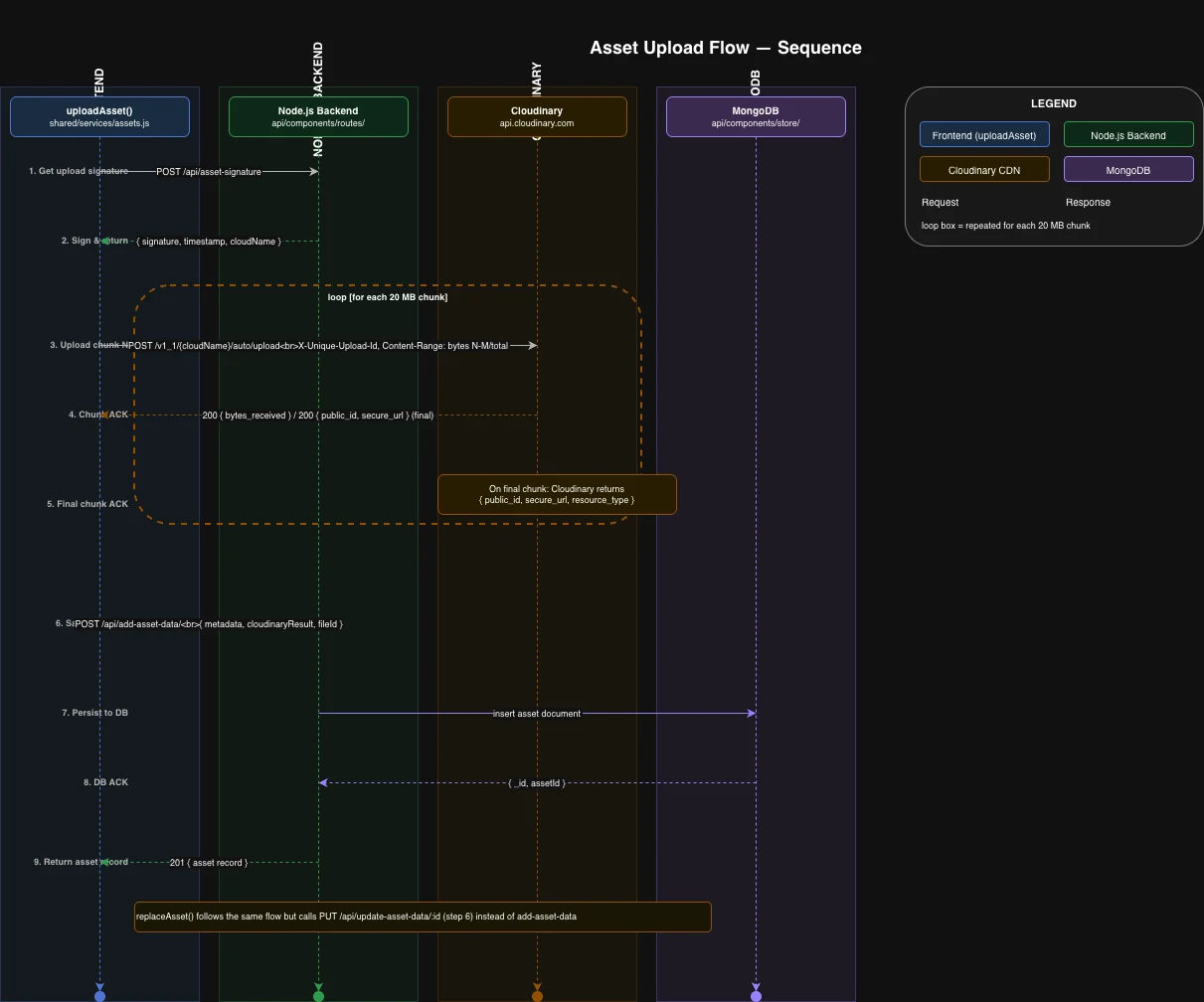
These, and the others I attempted, could use refinement but I found it an interesting output with minimal prompts from me. I enjoyed my exploration of MCPs and iterating on diagrams. The most useful aspect didn’t involve diagrams at all but collating all of the information stored in the repos and outputting it into a concise form I can consume again, or share with a new member of the team. The layout and structure of the created Notion pages and sub pages was much better than my usual attempts and was a process I could leave running while tackling other tasks.
Written by